
Appearance
Workflow | D5 Sync for Blender
Supported versions
Supports Blender 2.93 ~ 5.1
Download and installation
Steps:
After downloading the zip file through the link, please unzip it and you will get the installation package:
D5_Sync_Blender_xxxx.exe.Close Blender. Double-click on the
.exeto start installation.After installation, turn on Blender and go to Edit > Preferences > Add-ons. Type to search for D5 Sync. If the version is correct, then check the box to enable the add-on.

- Turn on the panel of D5 on the side bar:

Notice
- By default, D5 Sync uses the same language as Blender.
- If the D5 Render Path field is blank, starting sync will open the D5 Render launched last time automatically.
Features
Model/Material sync
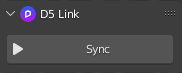
Click on Sync to launch D5 Render and send the Blender model with materials to D5. Real-time rendering starts.
If the model file has some changes, click on Sync again to reconnect to D5 Render and sync the changes.
Supported materials: Principled BSDF, Glass BSDF, Emission, Diffuse BSDF.
Incremental synchronization
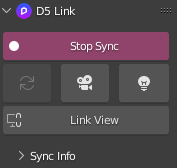
- After the current model has been edited in Blender, quickly sync the new model and materials to D5 Render by the Sync button, while keeping the materials and scene parameters that had been adjusted in D5 Render.
Camera sync
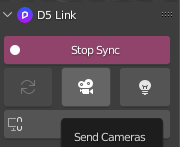
When live sync is on, click on the Send Cameras button to convert all Blender cameras into D5 scenes.
Camera name and collections are not supported for sync.
Light sync
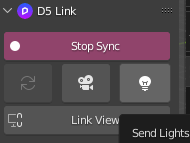
When live sync is on, click on the Send Lights button to synchronize lights (Point, Sun, Spot and Area) into D5 Render.
Supported light types and parameters:
| Blender | D5 | Parameters |
|---|---|---|
| Point | Point light | Name, location, intensity |
| Sun | Spotlight | Name, location, intensity |
| Spot | Spotlight | Name, location, intensity |
| Area | Rectangular light | Name, location, intensity, scale, shape (square, rectangle) |
Notice
Light groups and radius are not supported.
View sync
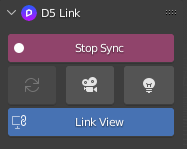
When live sync is on, click on the Link View button to keep the view of Blender and D5 Render consistent.
One click to turn on/off live view sync.
Export .d5a files
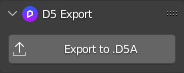
D5 Render cannot open
.blendfiles directly, therefore we can export the models in.d5aformat by D5 Sync for Blender.Export the whole file or selected objects only.
Material bake
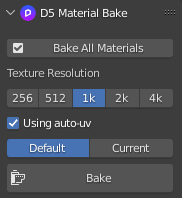
Bake all materials or selected ones only.
Choose different texture resolutions: 256, 512, 1k, 2k, 4k.
Sync the baked textures into D5 Render or export
.d5afiles.Support baking Blender procedural textures.
Recommended to check Using auto-UV option: automatic UV mapping.
Default / Current bake settings: Default (recommended bake settings); Current (current Cycles settings).
Customize the output path of baked textures.

Uninstall
Go to Blender > Preferences > Add-ons, search for D5, find D5 Sync for Blender, check it and click on Remove.
Or uninstall D5 Sync for Blender from the Start menu directly.
